


Introduction
When people talk about the “command line” on Linux, they often mix up three different concepts: console, terminal, and shell. They interact closely, but they’re not the same thing.
If you’re a casual user, the distinctions do not matter much. But if you use the command line a lot or write scripts, which many average users eventually end up doing, it helps to understand the differences.
When squaring off against the command line, we should have a basic knowledge of what is going on. While the shell, console, and terminal are part of this, there are other concepts that need to be defined. The big ones is the difference between kernel space and user space.
For this discussion we will look at data flow from your hardware (keyboard, mouse, monitor) though the Linux system to user space. In this discussion we will also introduce two acronyms; TTY and PTY.
By the end of this discussion you should understand the differences, and how these various parts work together within the Linux operating system.
Our discussion will focus on;
- Overview of the Linux system from hardware to user space
- the TTY and PTY are
- What the Shell is
- What the console is
- What a Terminal (terminal emulator) is
Linux System Simplified Block Diagram
It is often said Linux is just a kernel. To make an operating system, several additional components are needed. Lets lay things out as a theoretical stack diagram. At the bottom is our hardware. Sitting above the hardware is the Hardware Abstraction Layer (HAL). The Linux kernel sits on to of this. Between the kernel and the user is the system call layer. Above the System call layer is User space. Below the system call layer is kernel space.
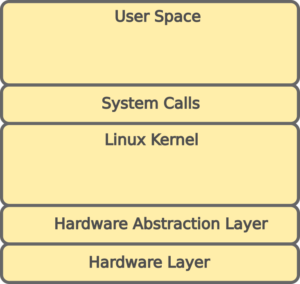
Using this diagram, we can now move forward with our discussion.
TTY and PTY
Terminal (TeleTYpe or TTY)
A terminal (tty) is an operating-system concept of a device (real or virtual) that programs can attach to. On older systems it referred to actual devices colloquially called dumb terminals. On newer systems it is usually a virtual device or another computer that connects via specific protocols (like ssh). It is basically an abstraction layer for data streams from bidirectional character devices. TTY devices are often described as Virtual Consoles (VT).
Pseudo Terminal (PTY)
A pseudo-terminal is a kernel mechanism that creates a pair of connected “terminal-like” endpoints for processes that aren’t directly connected to the hardware console. This is how a terminal emulator in a graphical environment can run a command-line program as if it was in a real terminal. Like a Virtual Console, a Pseudo Terminal does not interact directly with the Kernel.
Virtual Console
A virtual console, is a kernel-managed text interface. This is the most basic level of user interaction with the operating system. While operating systems provide a number of user interfaces, these are unavailable when running in a console. Even though a console is managed by the kernel, it does not directly communicate with the kernel. At the most basic level it’s sole purpose is to collect user input and provide user output.
The Shell
A shell is a program that provides command language interactions with the system. It reads what the user types from its controlling terminal (TTY/PTY), parses it into commands, and then runs programs and interacts with the system.
The shell is responsible for turning command syntax into actual process execution and job control behavior. Basically it runs your programs for you.
In practice, the shell is “the thing that turns your input into processes,” while the TTY/PTY are “the I/O plumbing” that connect those processes to your keyboard, mouse, and screen.
In this article we will be talking specifically about the Bourne Again SHell, often simply refereed to as bash. However I need to point out that there are other shells that exist and may be installed on your system. Probably the next most common is the Bourne shell (sh). It needs to be noted that bash and sh do not always interact the same way with what you are typing. The bash shell was developed as an alternative to sh, and supports additional features and capabilities.
Additionally there are many other command line shells, each designed for specific usage; C Shell (csh), Korn Shell (ksh), Z Shell (zsh), Almquist Shell (ash), etc.
We will be strictly using the bash shell in this article. But if you are interested in what other shells are installed on your system you can use the following command;
cat /etc/shells
Console Data Flow
In practice when people refer to using the console, they are referring to system startup, system shutdown, and a text only system interface. We want to take a look at the data flow in a console because while it may appear to be the same as a terminal, there are some differences.
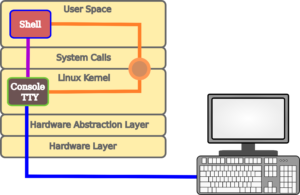
So lets look at the data flow for a console;
- User types data on keyboard
- The data moves to the TTY which echoes it back to the display
- The TTY sends data to the shell
- The shell waits for a return, then analyzes the line. If there is a command to be executed the shell parses it and sends it to the system.
- Depending on the operations, both the shell and the system can send information back to the TTY
- The TTY forwards any returned data to the display.
Terminal Emulator
The main difference between a console and a terminal emulator is the PTY. The keyboard, monitor and mouse use the Master side of the PTY, and the Terminal emulator uses the Slave side of the PTY.
Unlike the console, the terminal emulator is an application running in User space. And in many cases it recognizes both keyboard and mouse input.
Like the console the terminal emulator passed data to the shell. And once the return key or mouse button is pressed, the shell evaluates the data and routes commands to the System.
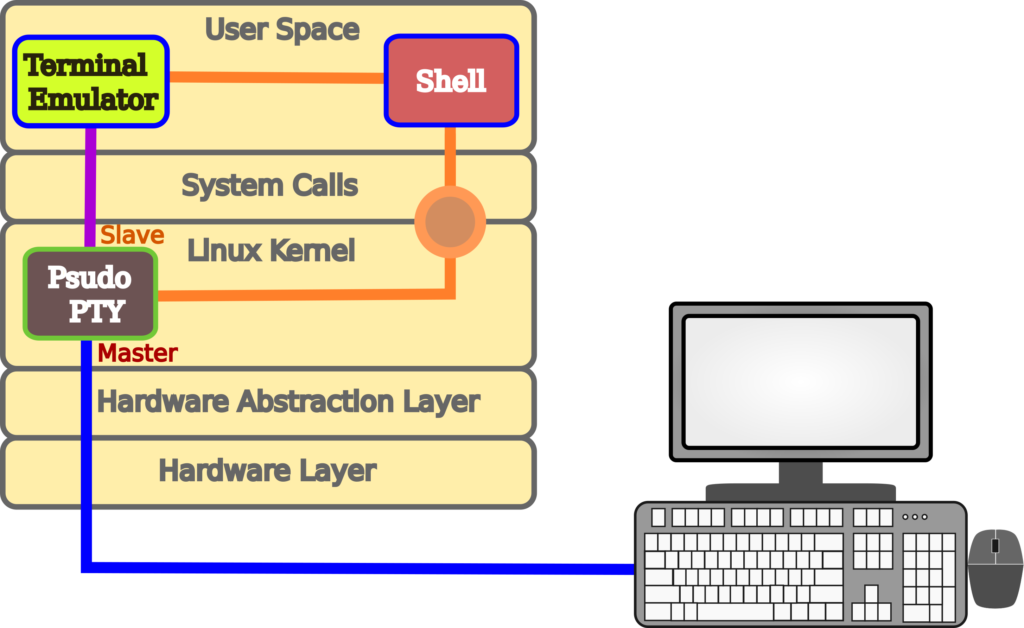
It is referred to as an emulator because it mimics the console functionality. It also provides additional support for additional input devices (the mouse) used in a graphical environment.
Conclusions
Our discussion has covered the basics of terminals, consoles, and shells from a fairly high level. There are all sorts of additional differences and functions when one gets down into the weeds. Not being the direct purpose of this article, we basically ignored them. But even as an average user of Linux, we should know the basic differences in the terminology. Because the longer you use Linux, the more likelyn you will be dealing with them at some point.
And make no mistake here. Even if you are just an average user, if you use Linux for any length of time, not to scare anyone but, you will (not may) eventually have to deal with the command line. And a little foreknowledge can go a long way.
Leave a Reply